
It is easier than you think
Most business owners assume that adding interactive video to their website requires a developer, a video hosting service, and hours of configuration. That is not true anymore.
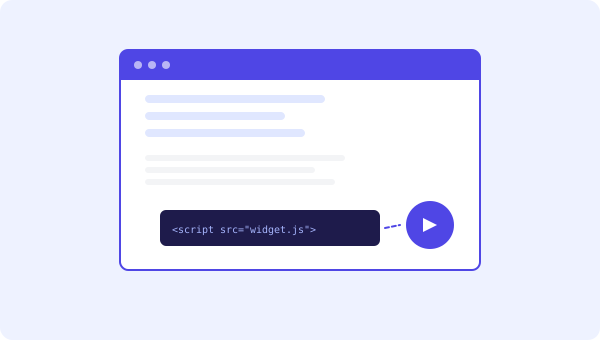
With a modern video bot platform, you can go from zero to a working video widget on your site in about five minutes. No plugins to install, no code to write, no hosting to set up. You literally copy one line of code, paste it into your site, and you are done.
Here is exactly how it works, step by step.
Step 1: Upload your video (1 minute)
You need a video. It does not need to be fancy. A 20 to 30 second clip recorded on your phone works perfectly. We wrote a full guide on recording a marketing video with just your phone if you want tips.
Log into your video bot platform and go to the media library. Click upload, pick your video file, wait for it to finish. MP4 format works best. That is it for this step.
Step 2: Create a bot (1 minute)
A bot is just a container for your videos and buttons. Give it a name like "Homepage Welcome" or "Product Demo" and pick the video you just uploaded.
You can add multiple videos to the same bot and let visitors navigate between them using buttons. But for your first bot, one video is enough. Keep it simple.
Step 3: Add buttons (1 minute)
Buttons are what make a video widget interactive instead of just a passive player. They appear below or on top of your video and give visitors clear next steps.
Three types of buttons you can add:
- URL button - sends the visitor to any page. Use it for "See Pricing", "Book a Call", or "Shop Now".
- Video button - plays a different video in the same bot. Great for multi-step explanations or FAQ sequences.
- Chat button - opens a live chat window right inside the widget. Visitors can ask questions without leaving the page.
Add one or two buttons to start. You can always add more later. See all the button and widget options on our features page.
Step 4: Copy the embed code (30 seconds)
Go to the Share tab of your bot. You will see a small snippet of code that looks something like this:
<script src="https://apikoo.com/widget.js" data-bot-id="abc123" async></script>Copy it. That is your entire embed code. One line.
Step 5: Paste it on your website (1 minute)
This part depends on what platform your website runs on.
WordPress: Go to Appearance, then Theme Editor (or use a plugin like Insert Headers and Footers). Paste the code just before the closing body tag. Save. Done.
Shopify: Go to Online Store, then Themes, then Edit Code. Open the theme.liquid file. Paste the code before the closing body tag. Save.
Wix: Go to Settings, then Custom Code. Add a new code snippet, paste it, set it to load on every page in the body end position.
Squarespace: Go to Settings, then Advanced, then Code Injection. Paste in the footer field.
Custom HTML: Open your HTML file, paste the code before the closing body tag. Upload. Done.
If you can edit your website at all, you can add a video widget. It is the same process as adding Google Analytics or any other tracking script.
What happens next
Once the code is on your site, the video widget appears automatically. A small circular button shows up in the corner of your page. When a visitor clicks it, your video plays. Buttons appear. The visitor can interact, click through, start a chat.
You did not need to hire anyone. You did not need to learn anything new. Five minutes, and your website has something that increases conversions by up to 40%.
One embed code, multiple pages
Here is something most people do not realize at first: you do not need a separate embed code for each page. With the Sites feature, you can put one embed code on your entire website and use page rules to show different bots on different pages.
Your homepage shows a welcome video. Your pricing page shows a special offer. Your product pages show demos. All from a single snippet. The platform handles the logic.
Common questions
Does it slow down my website? No. The widget script is tiny (about 15 KB) and loads asynchronously. It will not affect your page speed score.
Does it work on mobile? Yes. The widget is fully responsive and works on phones and tablets.
Can I change the position? Yes. Bottom right, bottom left, top right, top left. You pick.
What if I want to remove it later? Delete the one line of code from your site. The widget disappears instantly.
Just do it
The number one reason businesses do not have video on their website is that they think it is complicated. It is not. Five minutes. One line of code. A video that greets every visitor and guides them toward the action you want them to take.
Apikoo has a free plan so you can try this right now without paying anything. Create your first bot, paste the code, and see what happens. You might be surprised how much of a difference it makes.